A walk through EDUTIG
In the order a school year actually happens, from an admission inquiry through to the month's payroll.
Step 1 of 16
The year is set up
Sessions, terms, classes, sections and subjects, with a setup wizard that offers a starting point for your region. One session is marked current, and everything else follows it.
More about this area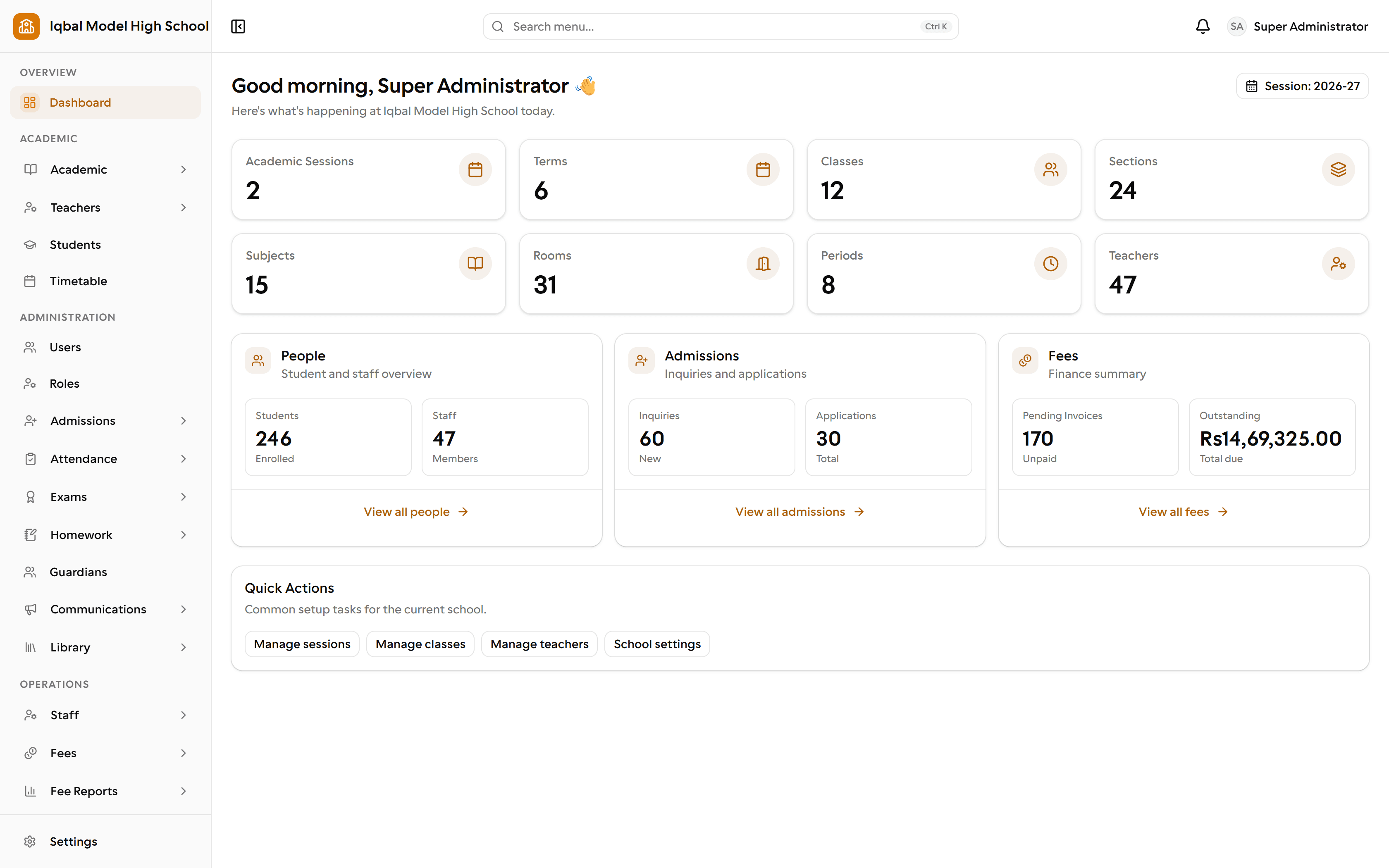
The administrator dashboard: the school's structure, people, admissions and outstanding fees on one screen. Step 2 of 16
The timetable is built
Fill the weekly grid by clicking a slot. EDUTIG refuses to double-book a section, a teacher or a room, so the clash is caught before term starts.
More about this area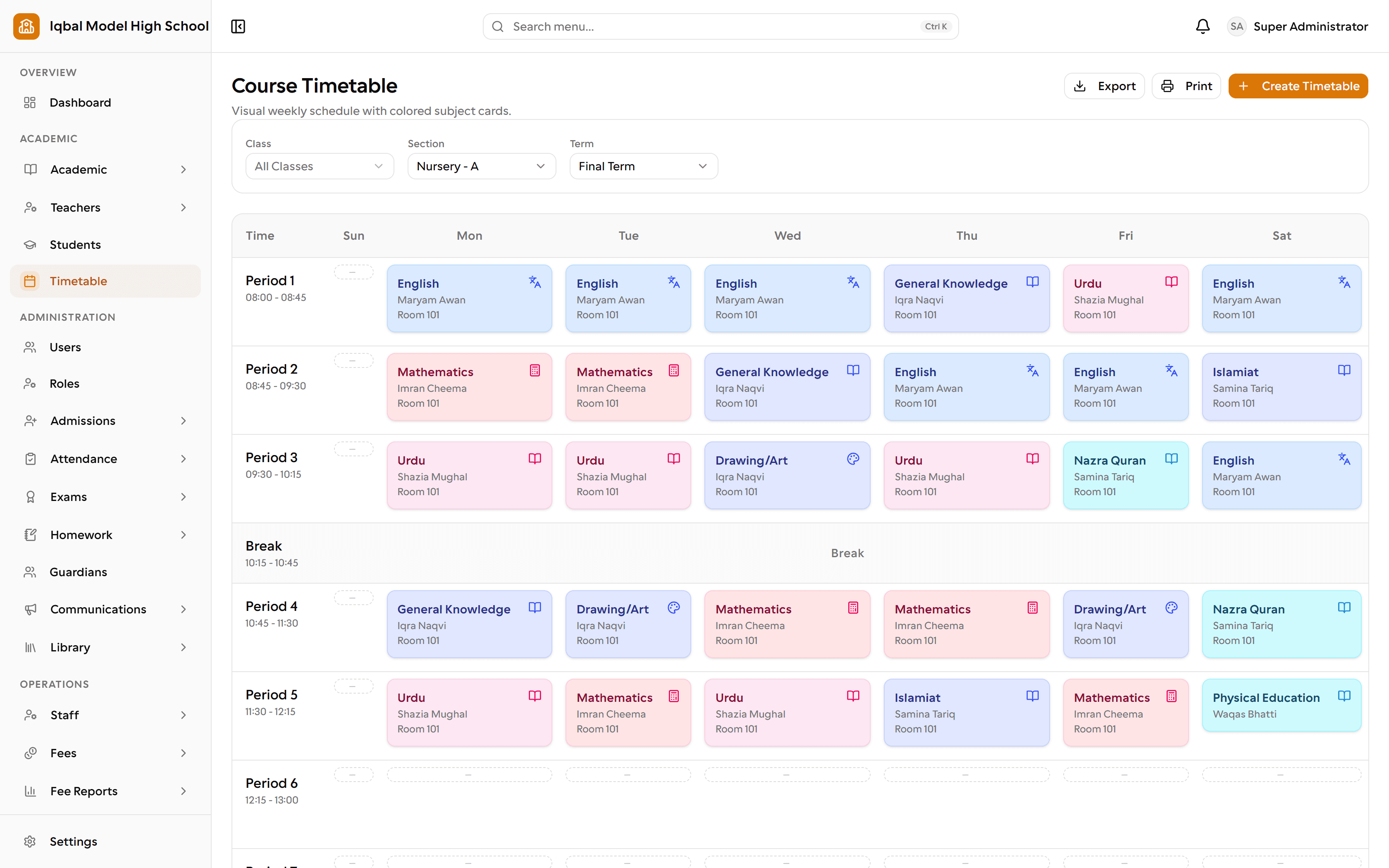
The weekly timetable for a section, with periods, breaks, teachers and rooms. Step 3 of 16
An admission inquiry arrives
Record who asked and what they want, and keep the follow-up in one place rather than on a notepad or in someone's inbox.
More about this area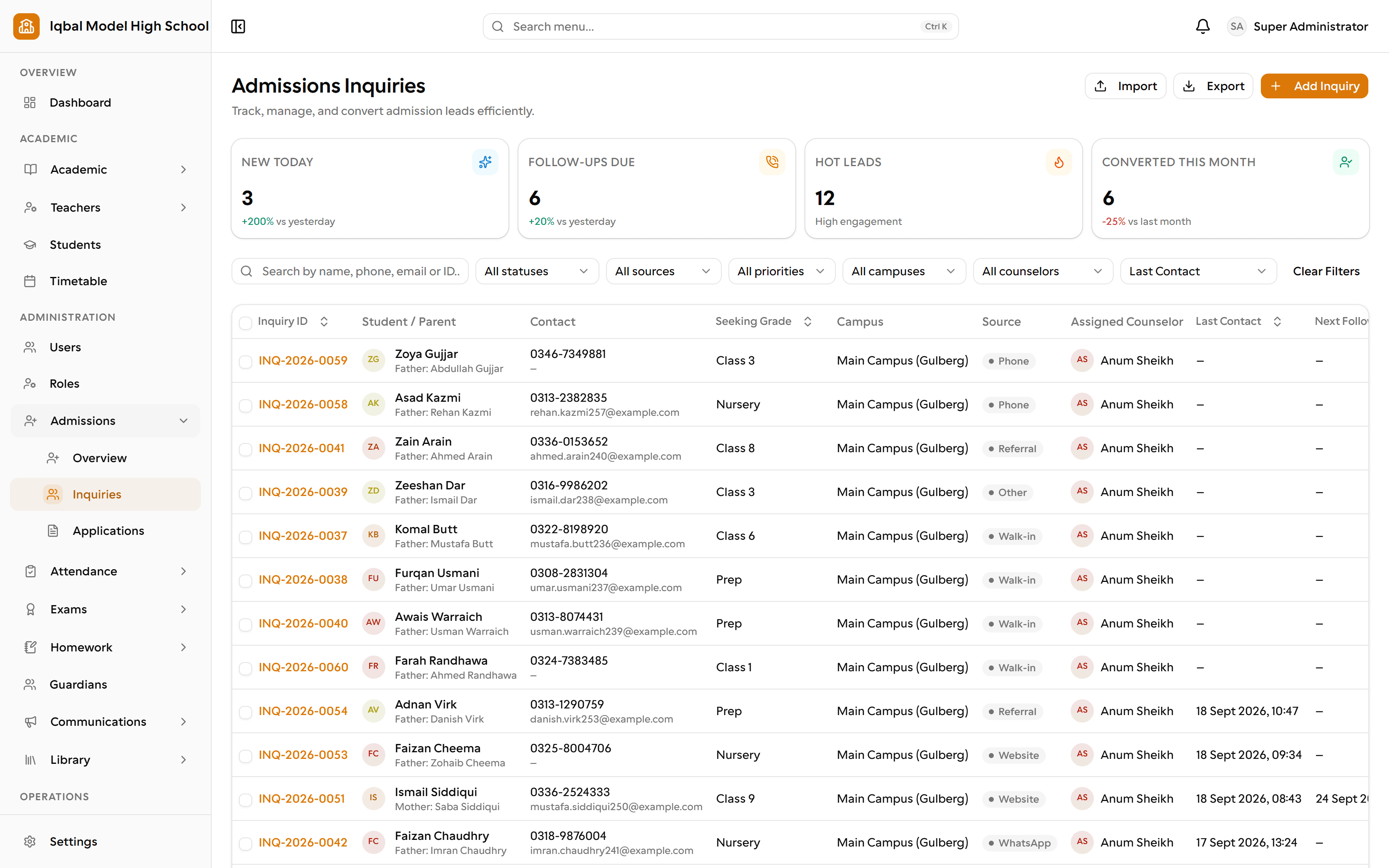
Admission inquiries, with counts for new leads, follow-ups due, hot leads and conversions this month. Step 4 of 16
The student is enrolled
An accepted applicant becomes a student record with a class, a section and linked guardians. Everything else refers back to it.
More about this area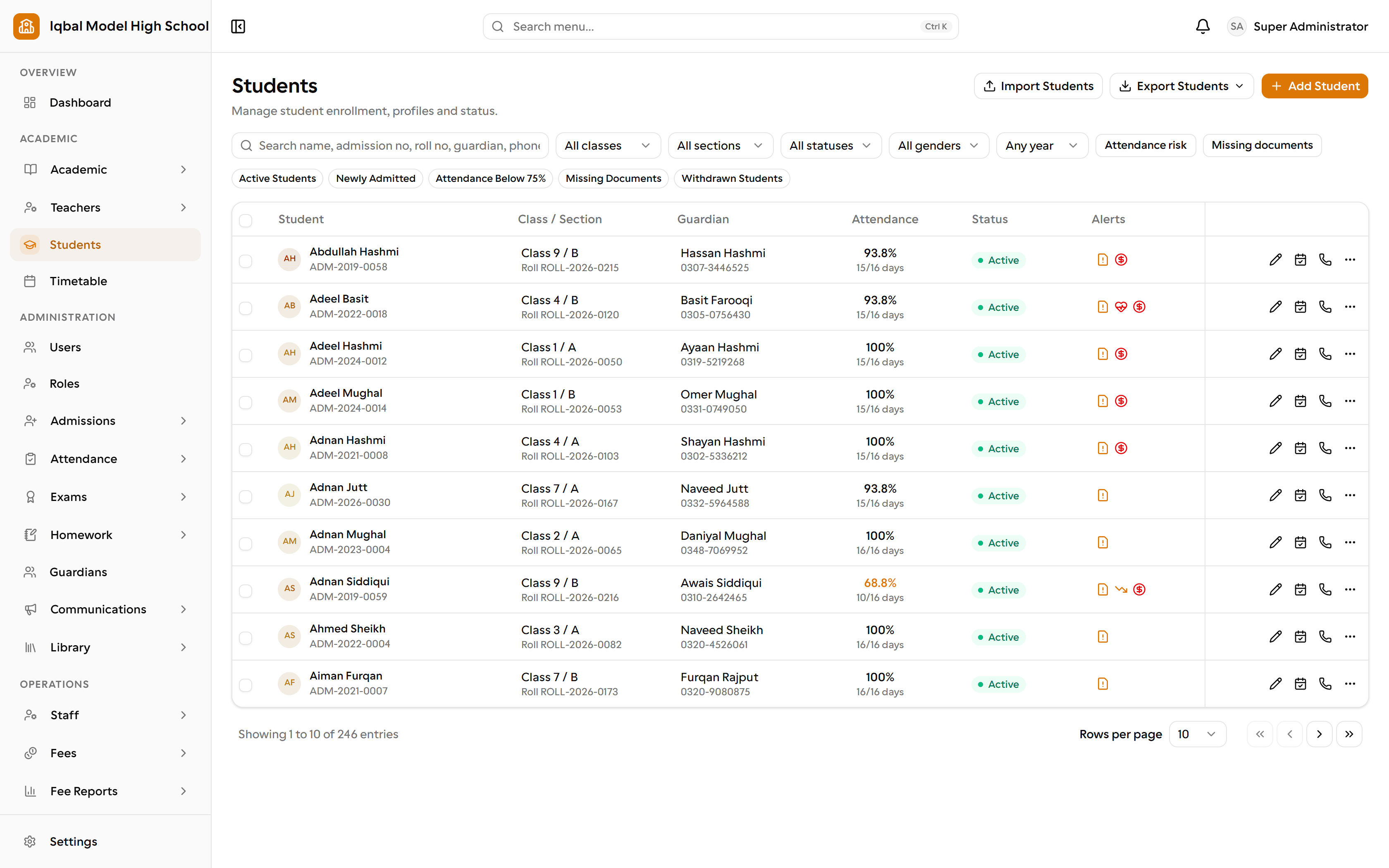
The student register, with class, guardian, attendance, status and alerts for each student. Step 5 of 16
Attendance is marked each morning
The class teacher marks the daily register. Corrections and student leave go against the same day, so the reports stay honest.
More about this area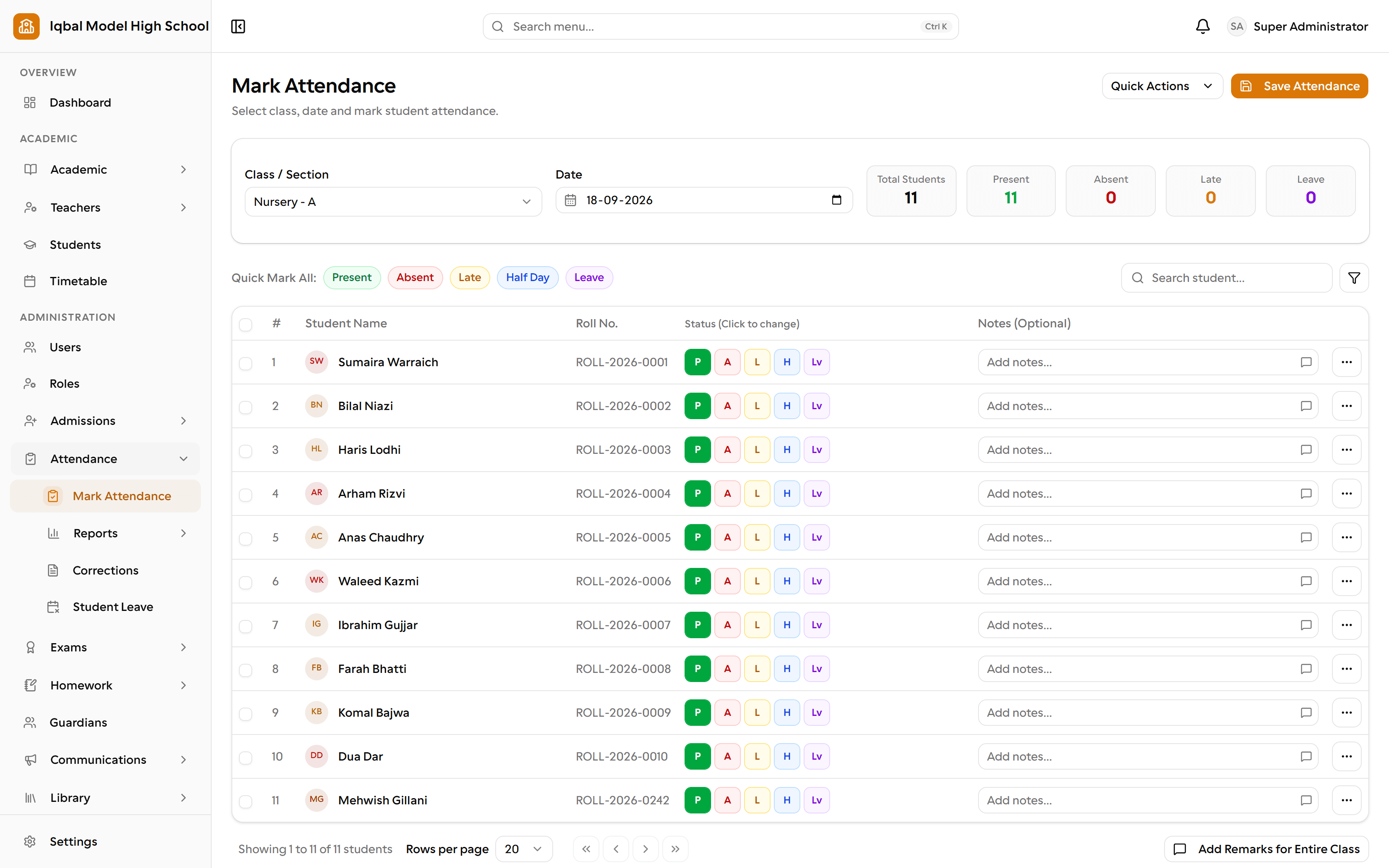
Marking a class register: present, absent, late, half day or leave, one tap per student. Step 6 of 16
Homework is set and collected
Teachers set homework for a class and subject; students and parents see it in their own portals, and submissions are graded in EDUTIG.
More about this area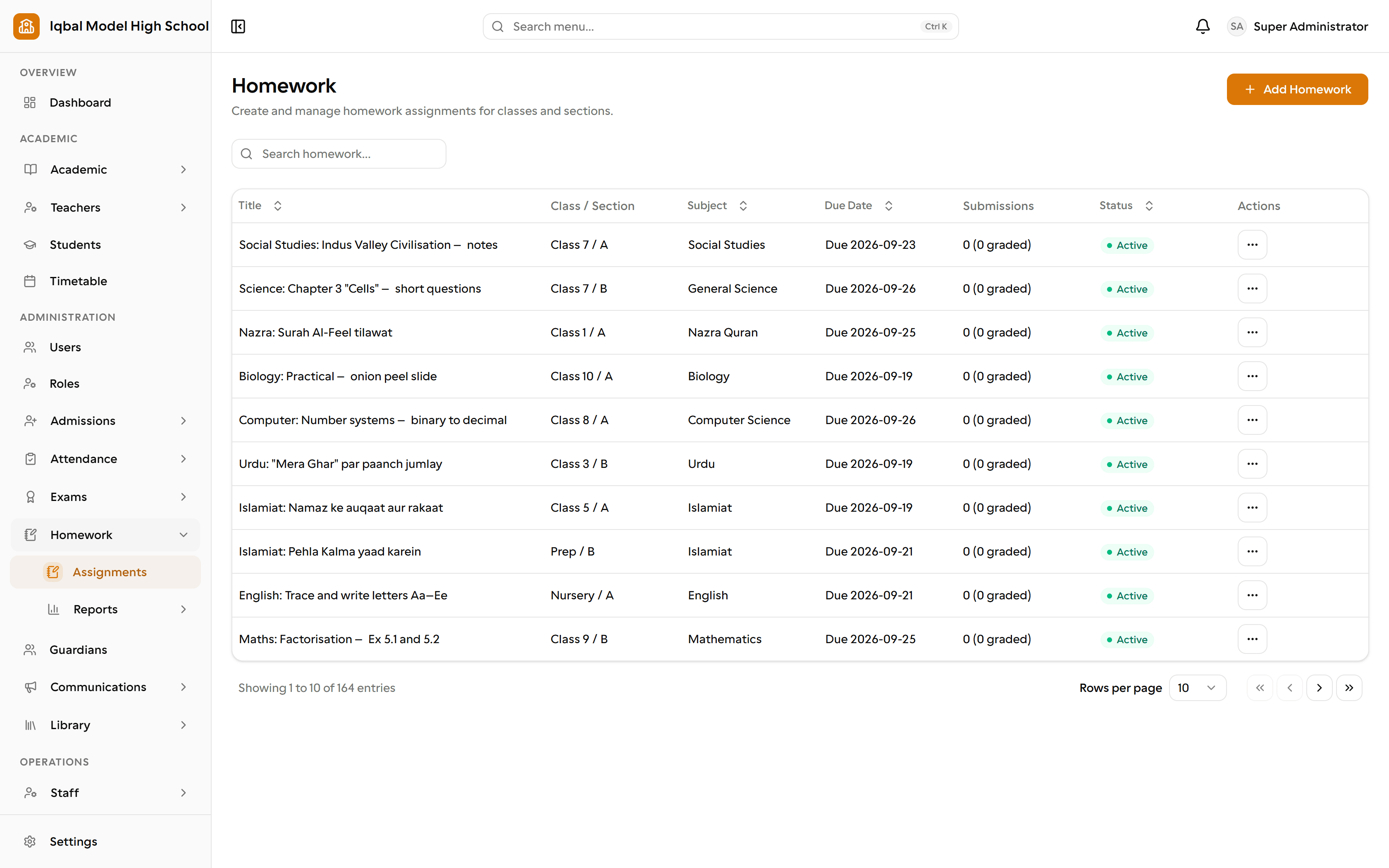
Homework assignments by class and subject, with due dates, submissions and status. Step 7 of 16
Exams are marked
Subject teachers enter marks for their own subjects, and your grading scale turns them into grades.
More about this area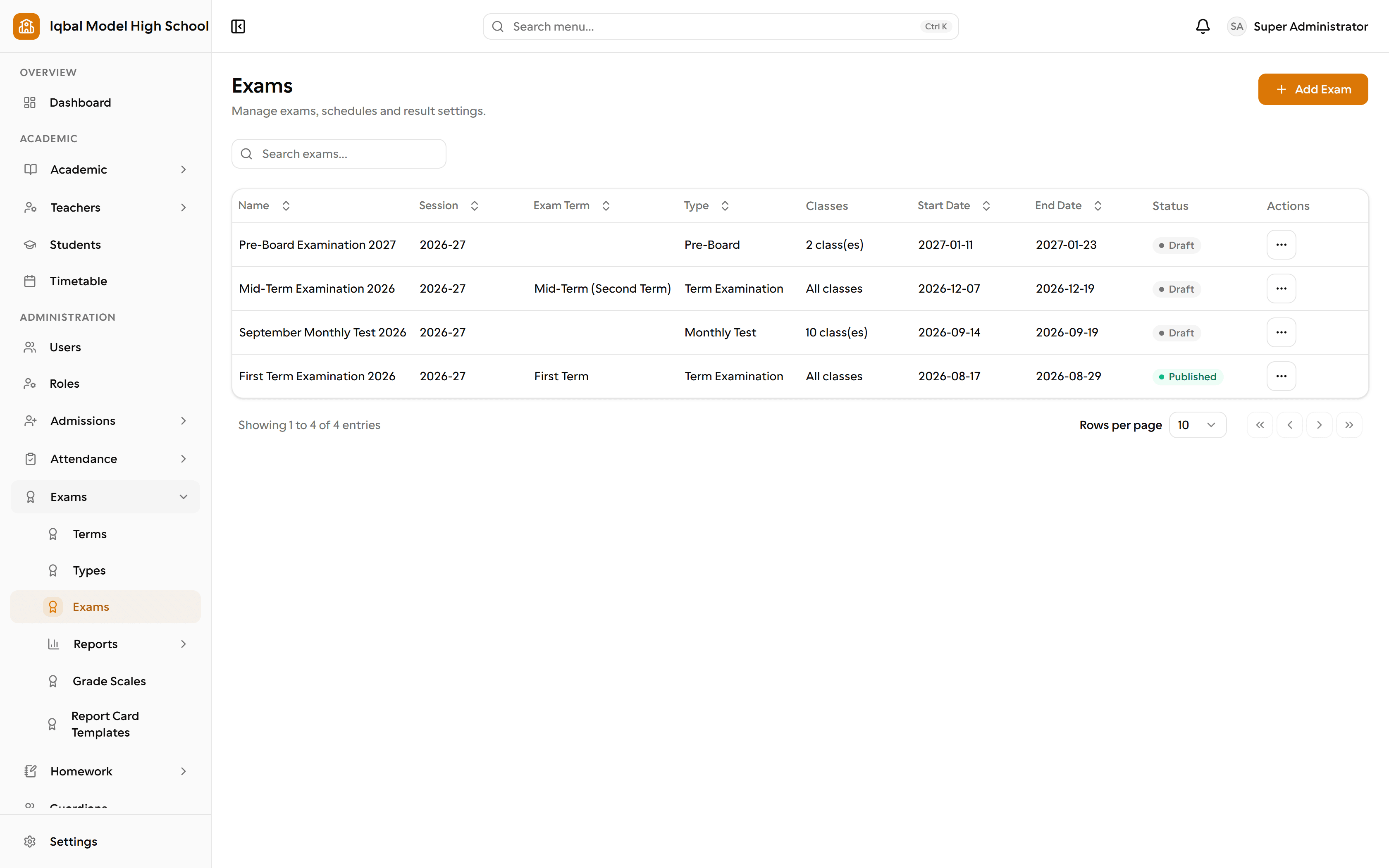
The exam list, with its term, type, classes, dates and status, beside the setup for terms, types, grade scales and report card templates. Step 8 of 16
Report cards are printed
Report cards come from a template you set up, printed from the browser for parents.
More about this area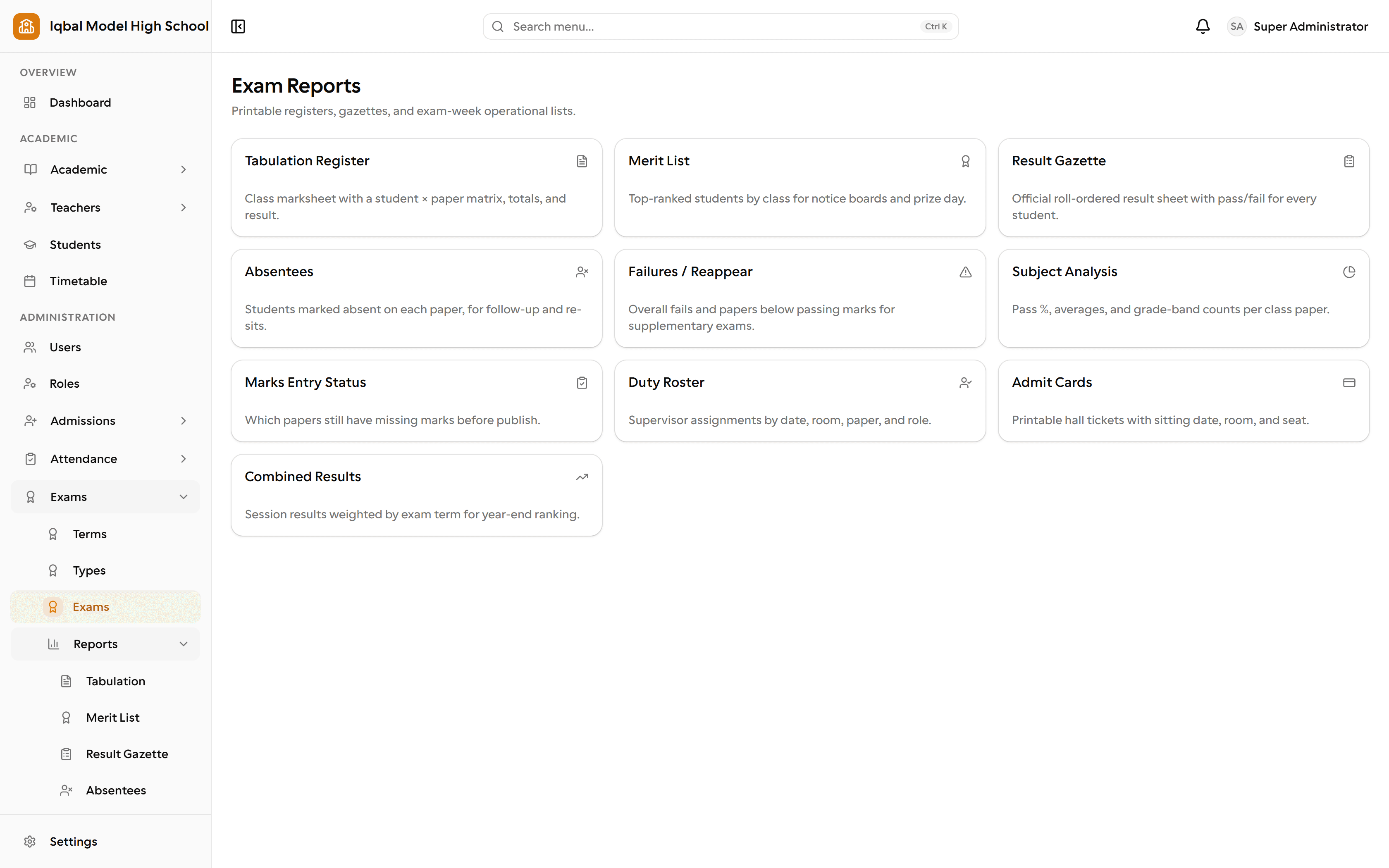
Exam reports: tabulation register, merit list, result gazette, subject analysis, admit cards and more. Step 9 of 16
Fees are invoiced
Generate invoices for a class, a section or selected students from the fee structures you defined.
More about this area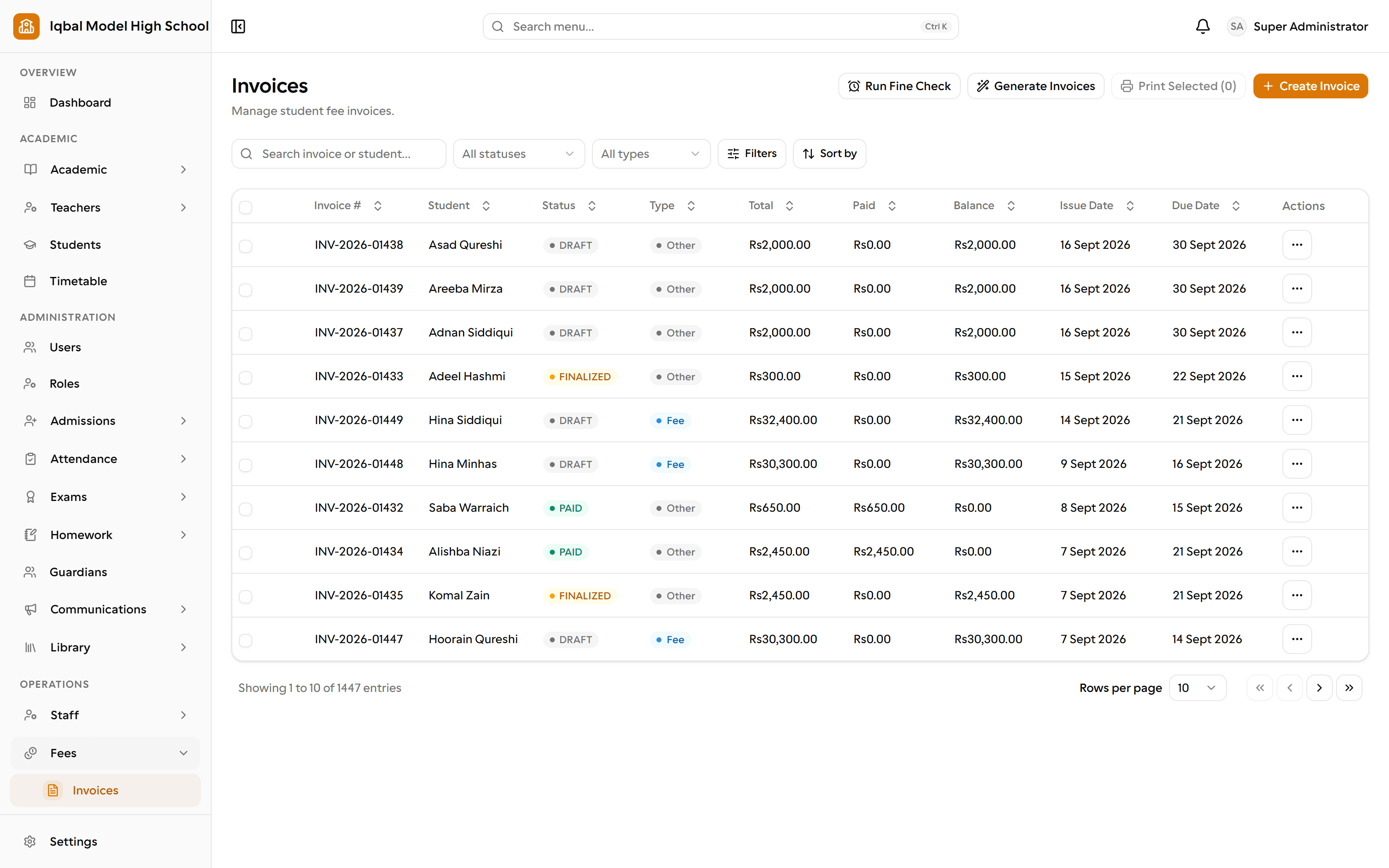
Fee invoices with their status, amount paid and balance, and bulk generation and late-fine checks. Step 10 of 16
Payments are receipted
Record a payment against an invoice and issue a receipt. Collection and outstanding reports follow from those records.
More about this area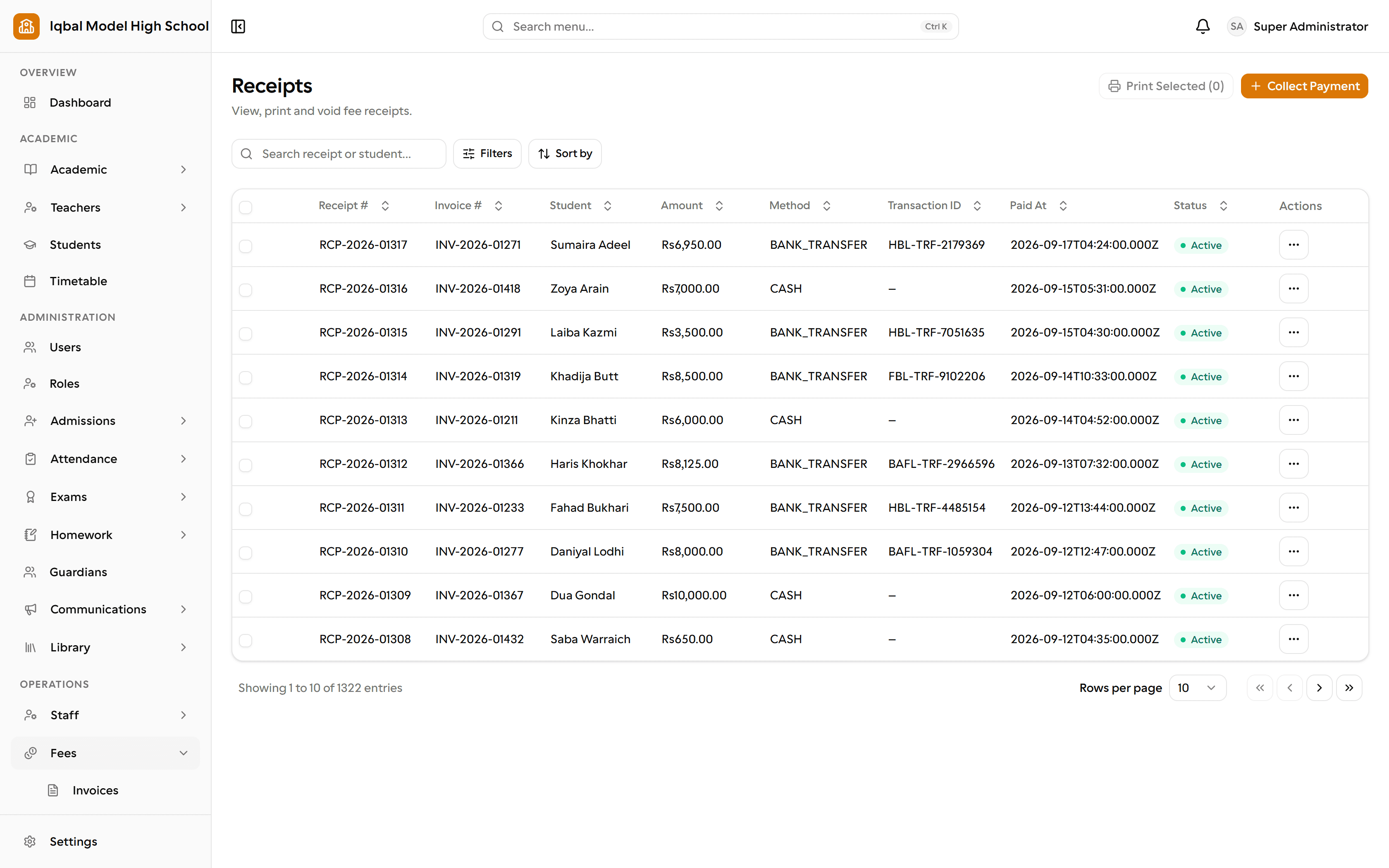
Fee receipts, each tied to its invoice, with the amount, payment method and time. Step 11 of 16
The month is reconciled
Expense vouchers go through approval and payment, then profit and loss, revenue and cash flow show the picture across fees, payroll and expenses.
More about this area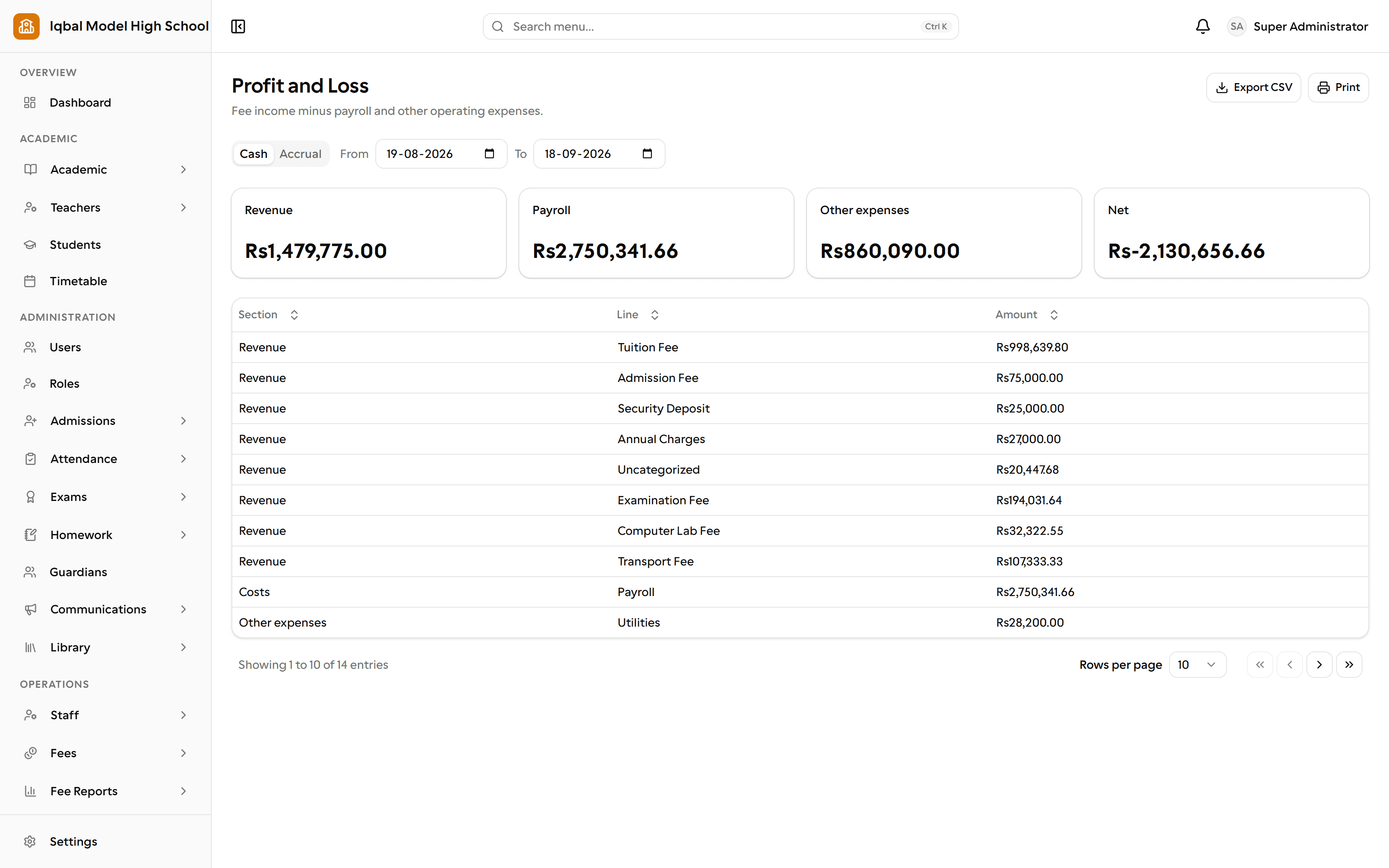
The profit and loss report: fee income minus payroll and other expenses, on a cash or accrual basis. Step 12 of 16
Staff attendance is recorded
Shifts, your own lateness thresholds and a holiday calendar. Staff see their own record and request corrections; the monthly totals feed payroll.
More about this area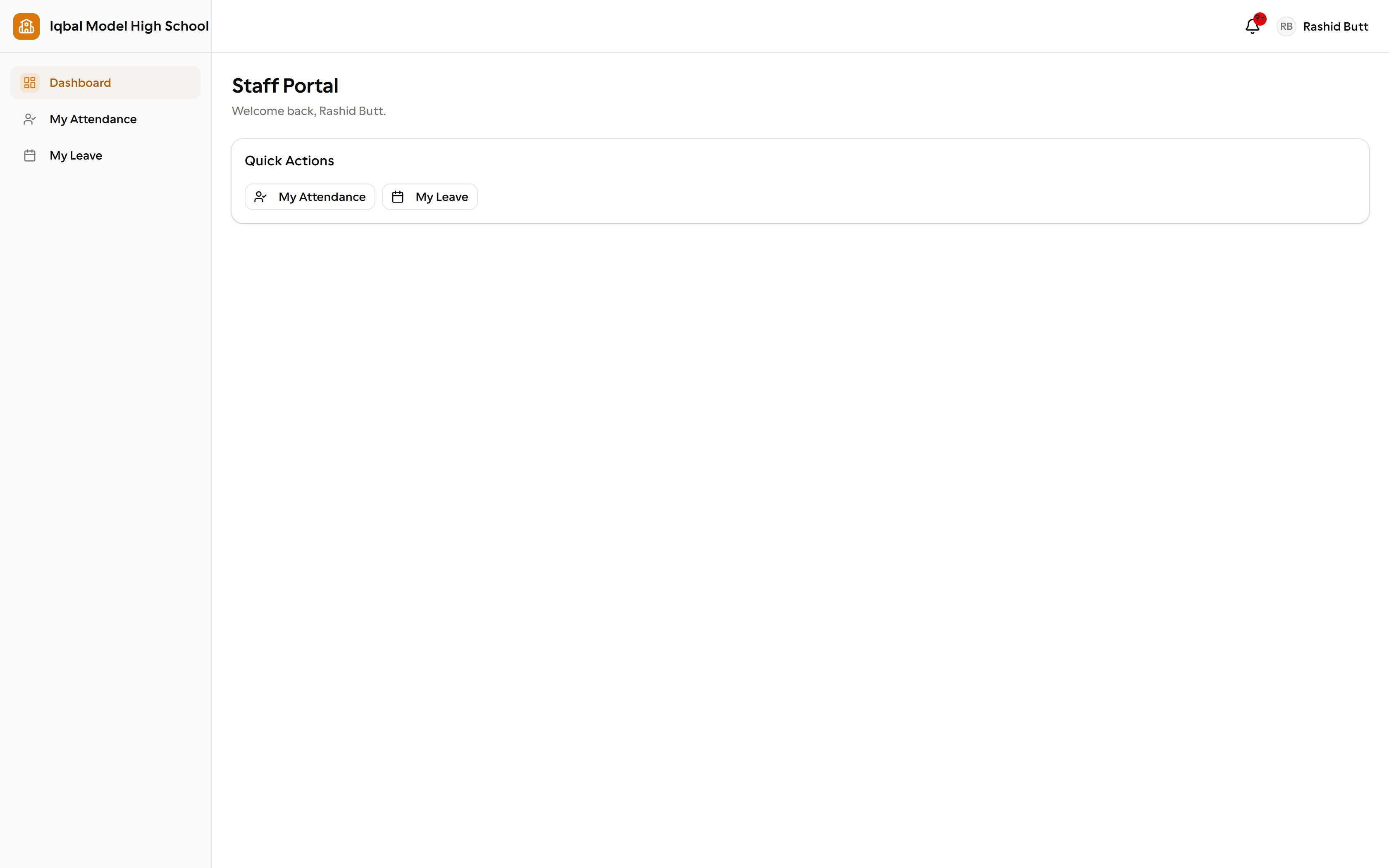
The staff portal: for non-teaching staff, their own attendance and leave, and nothing else. Step 13 of 16
Payroll is run
Staff attendance and approved leave feed the monthly salary run, and payslips are issued from the same place.
More about this area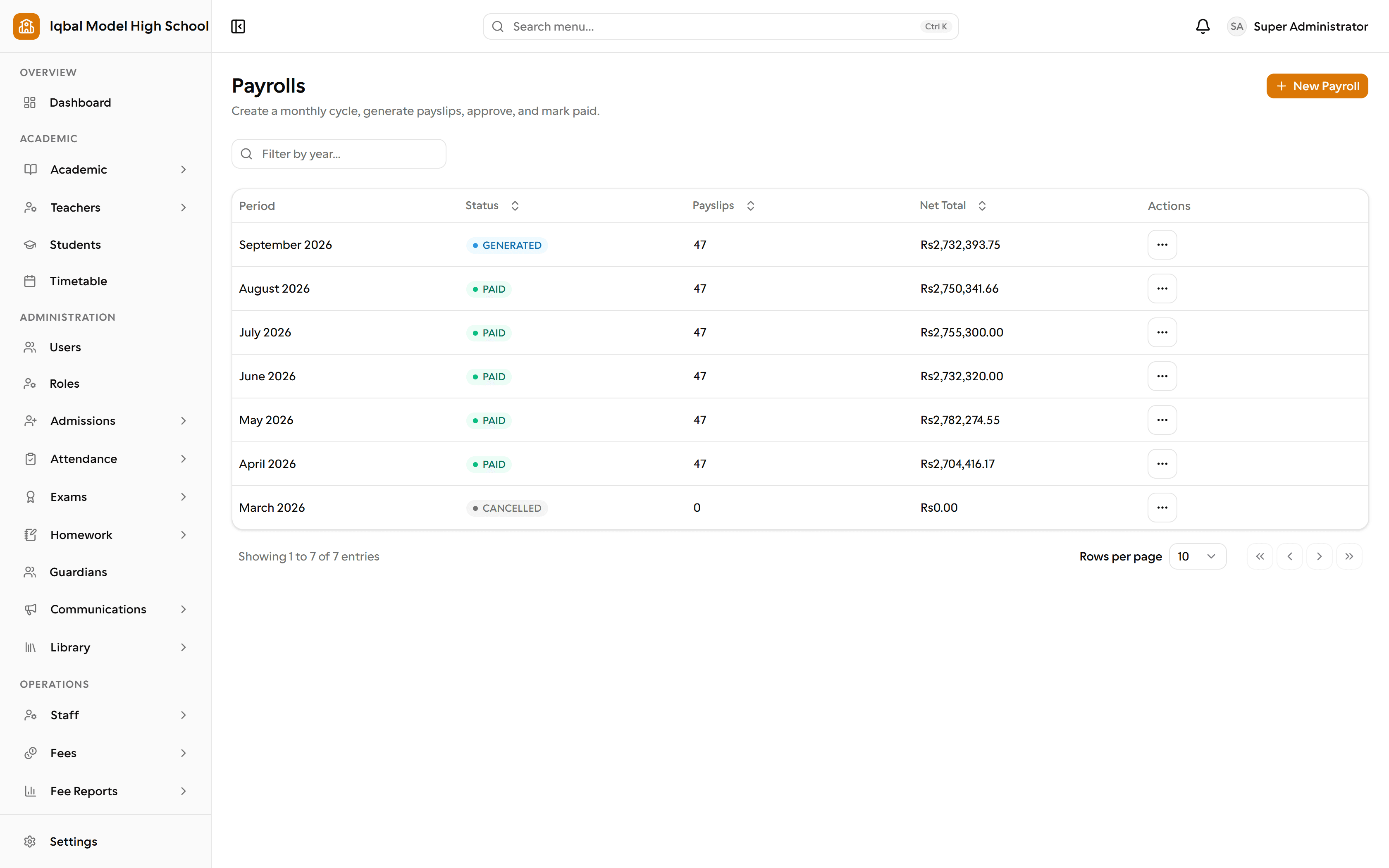
Monthly payroll cycles: generate payslips, approve them and mark them paid. Step 14 of 16
Parents are told what matters
Targeted announcements, plus twenty built-in events that can reach people by email, SMS, WhatsApp or the portal inbox, in your own words.
More about this area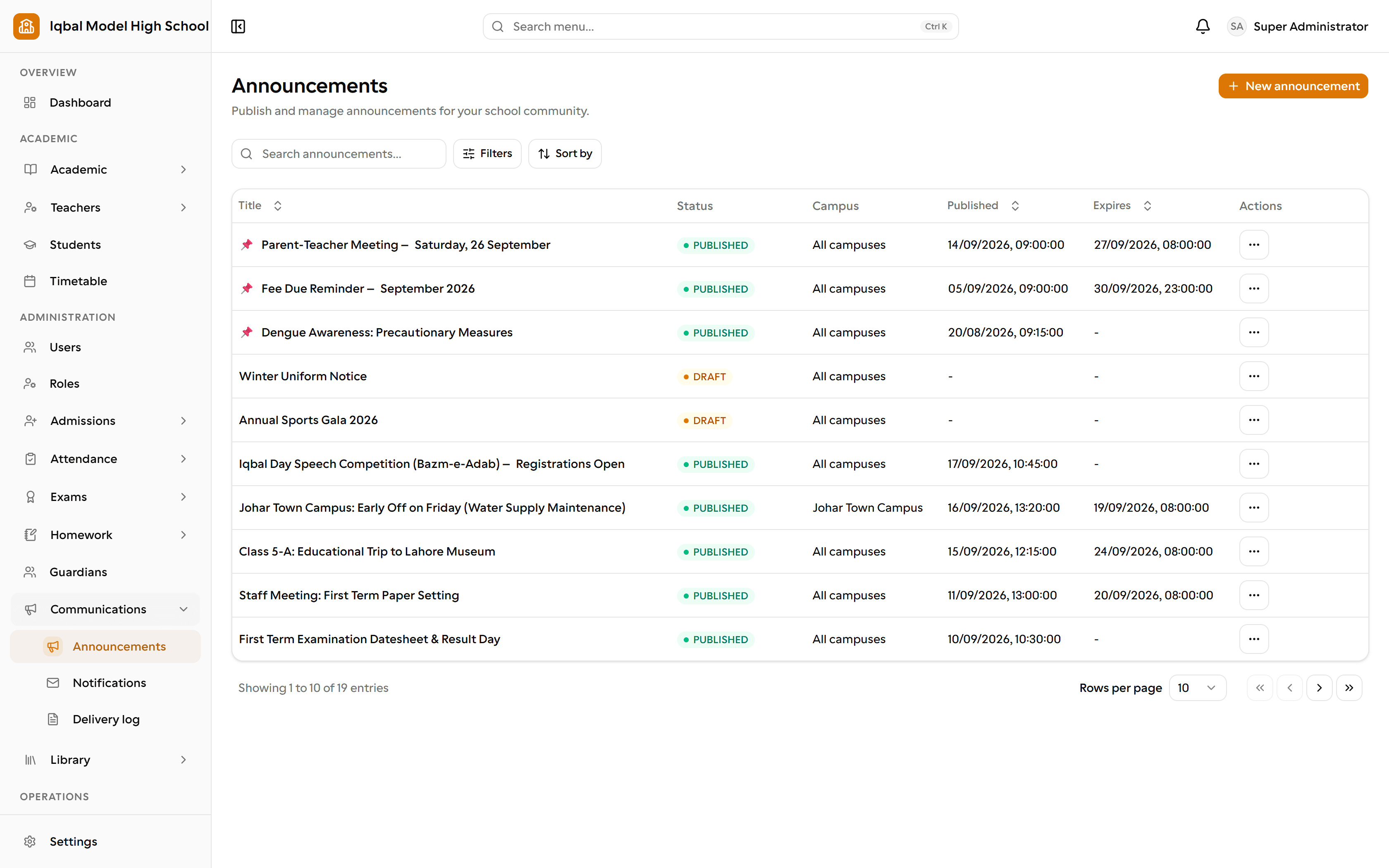
Announcements by campus, with publish and expiry dates, beside notifications and the delivery log. Step 15 of 16
The library keeps running
Issue and return under your own lending rules, with overdue reminders and fines handled without anyone chasing a spreadsheet.
More about this area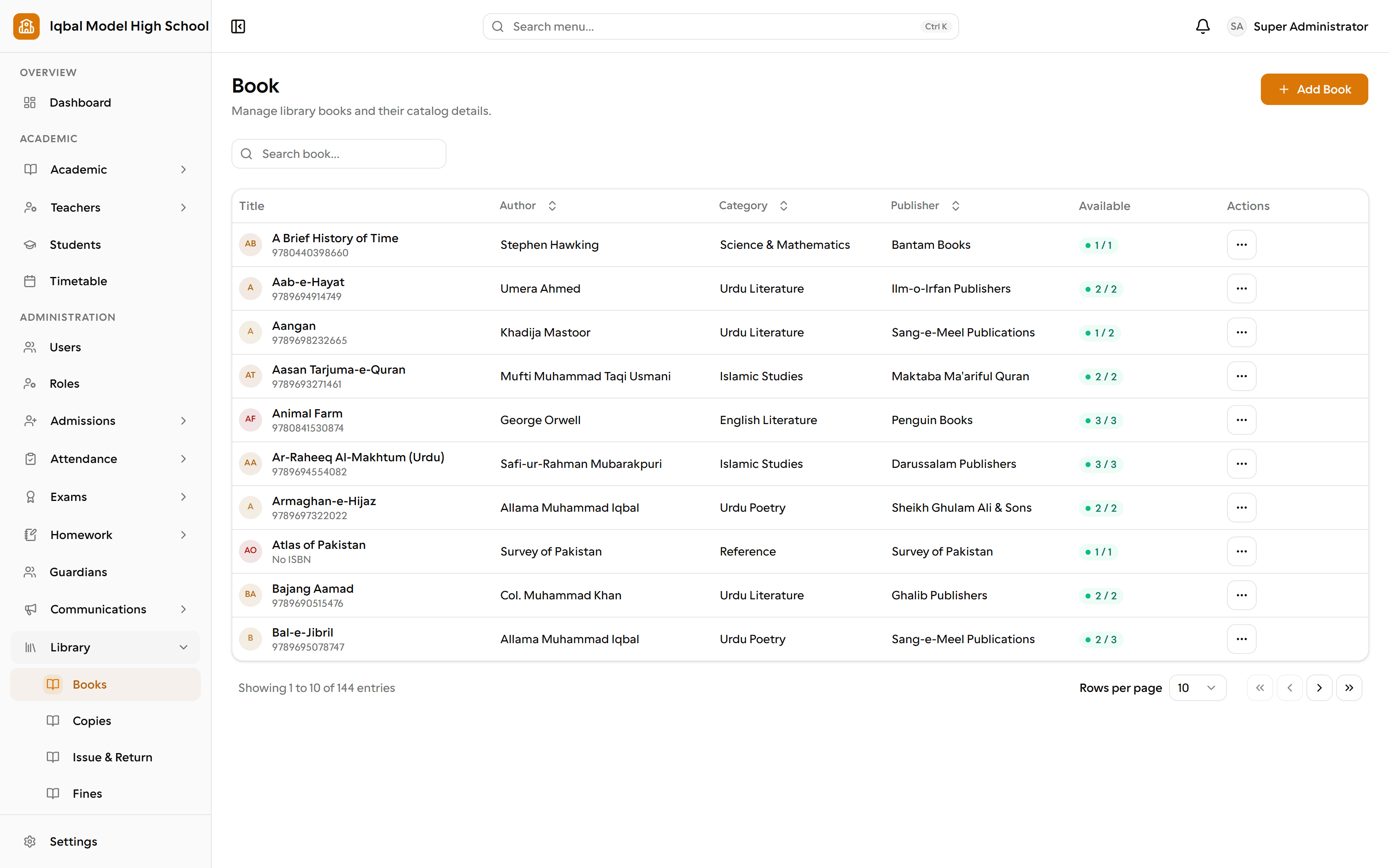
The library catalogue, with copies and issue and return managed alongside it. Step 16 of 16
The school run and the store
Routes with ordered stops and students assigned to them, alongside the stock, suppliers and fixed assets the school owns.
More about this area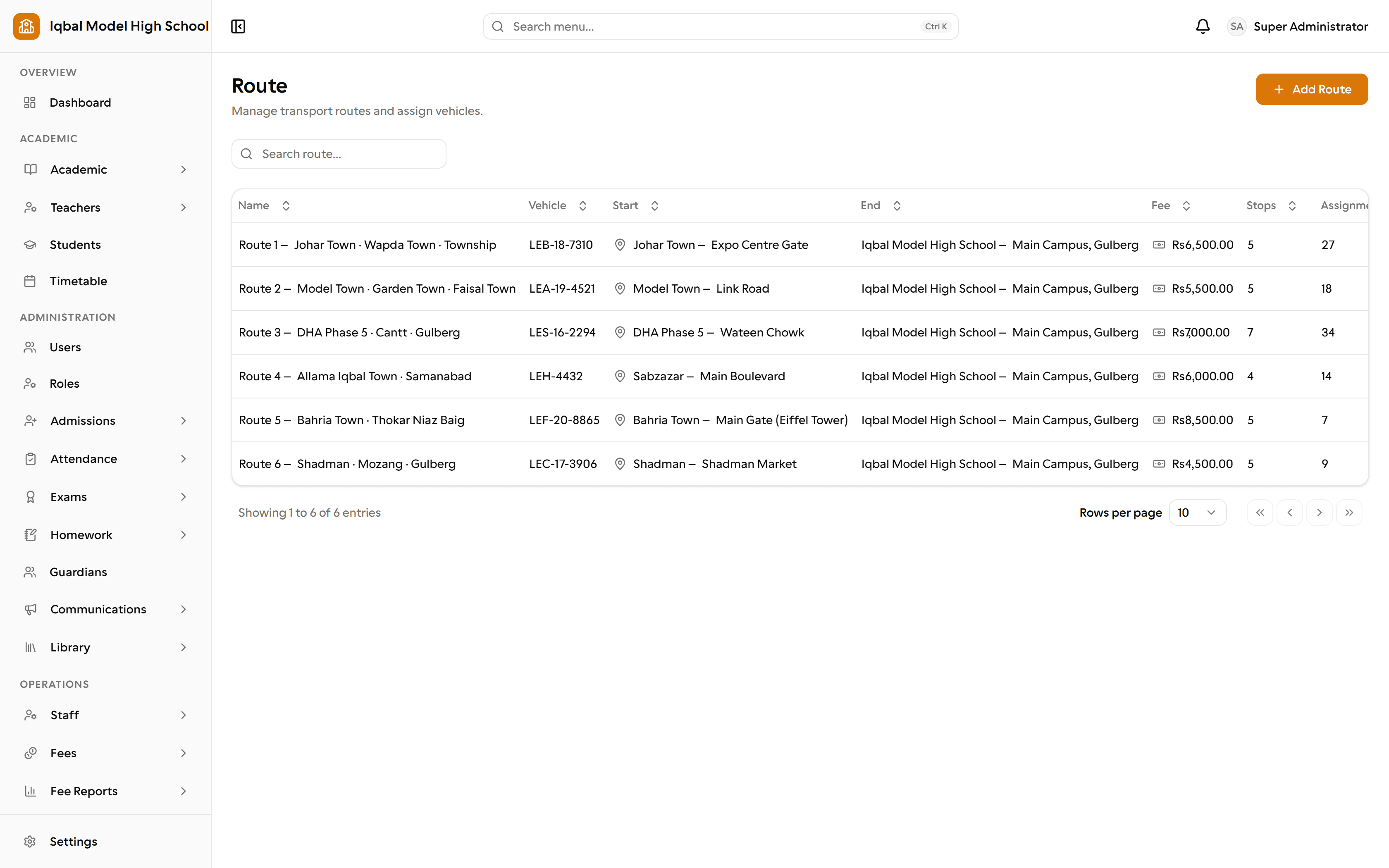
Transport routes, with the vehicle, start and end points, fee, stops and student assignments.
See EDUTIG with your own school in mind
Tell us how your school works today and we will show you the parts of EDUTIG that matter to you, using your questions as the agenda.